

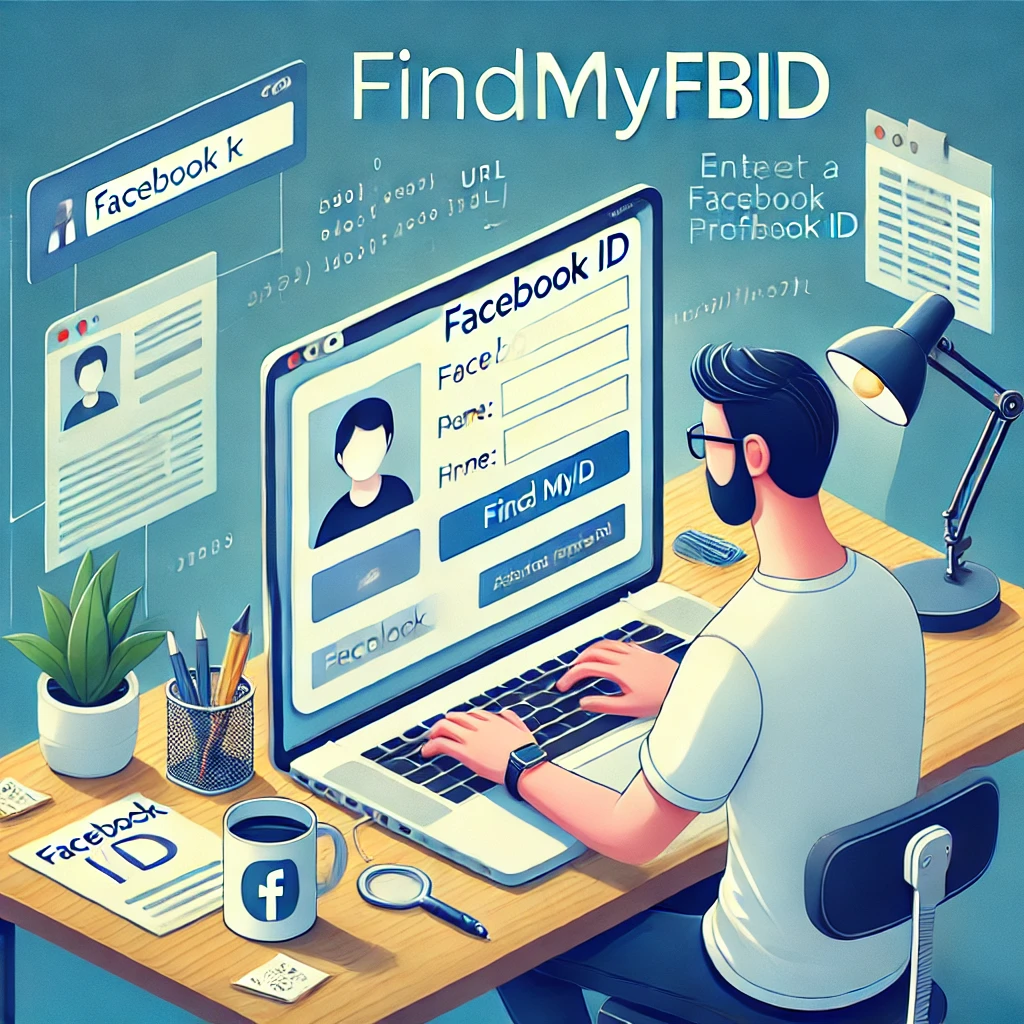

Facebook, the ubiquitous social media platform, connects billions of people worldwide. Whether you're a casual user or a business owner, understanding your Facebook ID is essential for various purposes. But how do you find it? Fear not! In this comprehensive guide, we'll delve into the world of findmyfbid and equip you with the knowledge to effortlessly uncover your unique Facebook identifier.
What is findmyfbid?
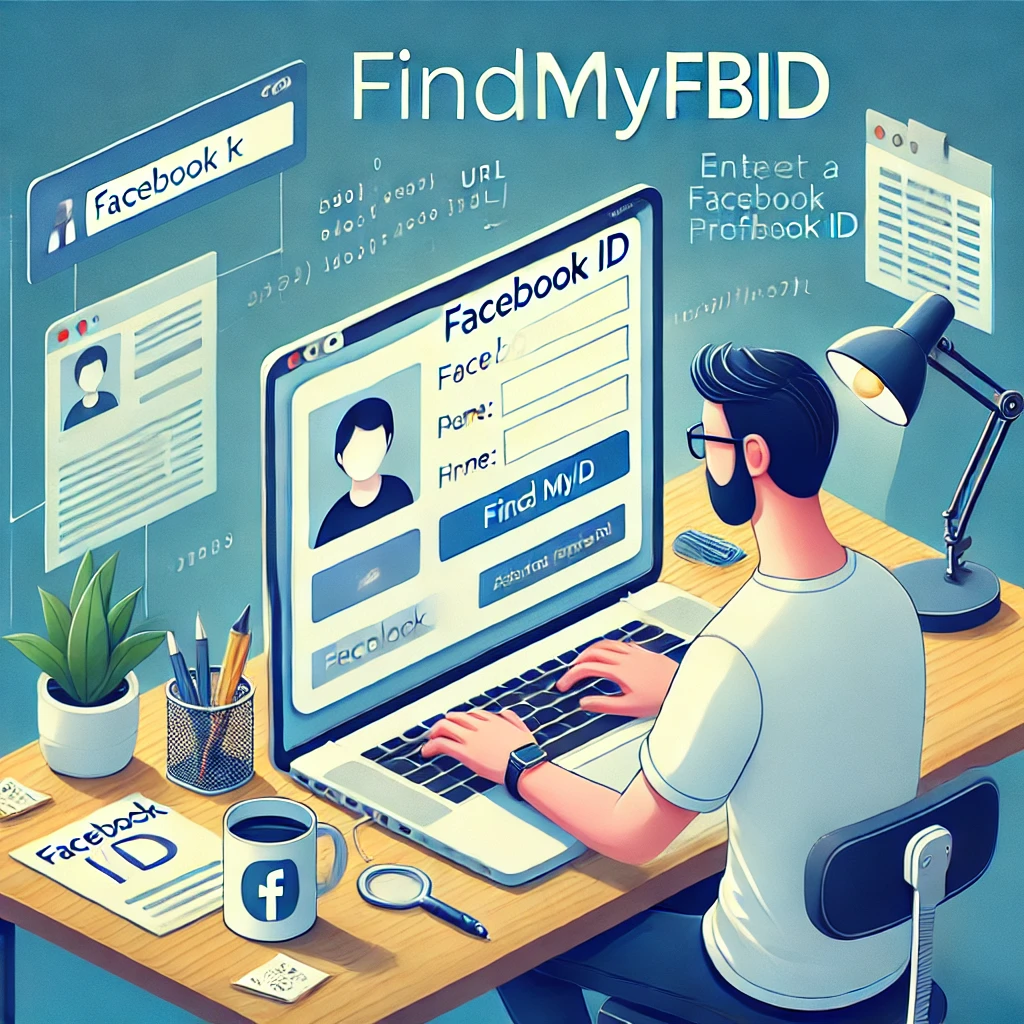
Findmyfbid is a tool used to find the unique Facebook ID of a Facebook profile, page, group, or event. Every Facebook entity has its own unique numerical ID, which can be useful for various purposes such as integration with third-party applications, tracking engagement metrics, or troubleshooting technical issues. Findmyfbid allows users to easily retrieve these IDs by inputting the URL of the Facebook entity they want to identify.
Why do you need your Facebook ID?
Understanding the importance of your Facebook ID is crucial. It serves various purposes, including:
- Integration with third-party apps: Many apps and websites require your Facebook ID for integration, such as social login features or accessing Facebook data.
- Tracking purposes: Developers and marketers may use Facebook IDs to track user interactions, personalize experiences, or measure ad performance.
- Troubleshooting: When seeking assistance from Facebook support or troubleshooting technical issues, providing your Facebook ID can expedite the process
How to use findmyfbid?
Using findmyfbid is incredibly straightforward. You don't need any technical expertise; follow these simple steps:
- Visit the findmyfbid website: Go to findmyfbid.com using your web browser.
- Enter your Facebook profile URL: Copy and paste the URL of your Facebook profile into the designated field on the website.
- Click 'Find My FB ID': Once you've entered your profile URL, click the button to generate your Facebook ID.
Steps to find your Facebook ID
Finding your Facebook ID involves a few easy steps. Here's a detailed guide:
- Log in to Facebook: Open the Facebook web browser and log in to your account.
- Access your profile: Click on your profile picture or navigate to your page.
- View page source: Right-click anywhere on the page (or press Ctrl+U) to view the source code.
- Search for your Facebook ID: Use the search function (Ctrl+F) and search for "profile_id." Your Facebook ID will be next to this identifier.
- Note down your Facebook ID: Copy the numerical value next to "profile_id" – this is your unique Facebook ID.

Understanding your Facebook ID
Your Facebook ID is a string of numbers assigned to your account. While it may seem random, it holds significance in the Facebook ecosystem. Here's what you need to know:
- Numeric identifier: Unlike your username, which can be customized, your Facebook ID is a numeric identifier that remains constant.
- Privacy implications: Be mindful of sharing your Facebook ID, as it can potentially expose your account to unauthorized access or tracking.
Practical applications of findmyfbid
Now that you've obtained your Facebook ID, you might wonder, "What can I do with it?" Here are some practical applications:
- Integration with apps: Many apps and websites require your Facebook ID for various functionalities, such as social login or accessing specific features.
- Analyzing ad performance: If you're running Facebook ads, knowing your Facebook ID can help you analyze performance metrics and track conversions more effectively.
- Customizing experiences: Some platforms use Facebook IDs to personalize user experiences, such as recommending content or tailoring advertisements.
Troubleshooting common issues
While findmyfbid is a convenient tool, you may encounter occasional issues. Here are some common problems and their solutions:
- Invalid URL: Ensure that you're entering the correct URL of your Facebook profile. Double-check for any typos or extra characters.
- Privacy settings: If your profile is set to private, findmyfbid may not be able to retrieve your Facebook ID. Adjust your privacy settings to allow access.
- Technical glitches: If findmyfbid isn't working correctly, try clearing your browser cache or using a different web browser.
How to Find the Facebook ID for a Facebook Group
Looking to uncover the unique Facebook ID for a group you belong to—or maybe one you manage? Good news: the process is faster than brewing your morning coffee.
Using Your Browser
- Head to facebook.com on your preferred browser.
- Type the group’s name into the search bar, or click the “Groups” shortcut if you’re already a member.
- Once on the group’s main page, check out the URL in your browser’s address bar.
- If you see something like those numbers at the end? That’s your group’s ID.
- If you see a custom group URL, you’ll need to dig a tiny bit deeper. Click the “About” tab or look for browser page source details, where the numeric ID is usually lurking.
Using the Facebook App
Not near your laptop? No problem.
- Open your Facebook app.
- Tap the “Groups” icon and find your target group.
- Tap the group name to enter. Then, look for the three-dot menu in the upper-right corner.
- Select “Share” and then “Copy Link.”
- Paste this link into a note or message—if the URL ends with a string of numbers, that’s the group ID.
If you encounter only a custom group name in the link, you can use online tools that extract numeric IDs, or check group settings—admins often have the ID displayed in community management tools.
Whether you’re sprucing up your social media strategy or need the ID for integration, finding a Facebook group’s ID is a breeze—no detective hat required.
How to Find the Facebook Page ID
Need to track down the Facebook ID for a particular page—say, for your favorite artist, your budding business, or that quirky café down the street? It’s easier than you might think, and you won’t need a magnifying glass or any secret handshakes.
Here’s a quick walkthrough for both desktop and mobile users:
From a Web Browser
- Open Facebook in your browser of choice (Chrome, Edge, or even that browser you only use for “emergencies”).
- Enter the name of the page you’re looking for in the search bar at the top.
- Click the proper page result—whether you’re seeking 9GAG’s memes or the latest from The Tamara Coorg.
- Once you’re on the page, glance up—your browser’s address bar holds the key. The entire URL of the page is right there. Copy it!
- If you need the actual Facebook Page ID (not just the URL), you can use a Facebook Page ID locator tool—just paste the link, and it’ll do the digging for you.
From the Facebook App
- Fire up the Facebook app and tap the search bar.
- Type the name of the page or brand you’re after, then tap to open it.
- Just below the page’s name, tap the three dots (...).
- Select Share → Copy link to grab the page URL.
- Paste this URL into your favorite Facebook Page ID tool—voilà, you'll have the numeric ID in seconds.
That’s all there is to it—no advanced skills required. Whether you’re managing a brand, running ads, or just curious, accessing the unique Facebook Page ID is straightforward.
How to Locate Your Facebook Numeric ID
Finding your Facebook numeric ID (whether it's for your personal profile, a page you manage, or a group) is easier than organizing your closet with those Amazon Basics velvet hangers. Here’s how you can do it:
- Open your preferred browser and navigate to your Facebook profile, group, or page—just like you’d select your favorite bath rug for the bathroom.
- Copy the full URL from your address bar. It should look something like:
https://www.facebook.com/your.name.or.page - Use an online tool or service to paste the link and retrieve your numeric ID—think of it as using a lint brush for clarity, but on your digital fingerprint.
Your numeric Facebook ID will appear: a unique series of numbers specific to your profile, group, or page—no assembly required.
Supported Facebook Links for ID Lookup
Wondering which kinds of Facebook links work for retrieving a Facebook ID? Our tool covers all the essentials. Just paste in a link to a Facebook profile, page, or group—public or private—so long as it’s an official Facebook URL.
For example, whether you need the numeric ID for your favorite band's fan page, want to look up a local community group, or are simply curious about the hidden ID behind your friend's profile, you’re in good hands. Simply use:
- Profile links (e.g., facebook.com/zuck)
- Page URLs (like facebook.com/Starbucks)
- Group URLs (such as facebook.com/groups/pythonprogrammers)
As long as the URL points to an official profile, group, or page, you can uncover its unique numeric Facebook ID—no guesswork needed.
What Is a Facebook ID (And How Is It Different from a Username)?
If you’ve ever peeked behind the curtain of your Facebook profile, you might assume your login name or personalized handle is your true calling card. In reality, every Facebook profile, page, and group is also given something a bit less memorable but far more official: a Facebook ID.
A Facebook ID is a unique string of numbers assigned to every account on the platform—including profiles, pages, and groups. Unlike your username (the name you personally select, often used in your Facebook web address), the Facebook ID never changes and is used by Facebook itself to identify and track accounts in their system.
- Username: Customizable, easy to remember, can be changed by the user (like @janesmith123).
- Facebook ID: Numeric, unchangeable, and works behind the scenes for everything from app integrations to troubleshooting.
So, while your username is the friendly face you show the world (and share in links), your Facebook ID is the platform’s backstage pass to your account—making sure you’re always uniquely you, even among billions of other users.
Security concerns
As with any online tool, it's essential to prioritize security when using findmyfbid. Here are some tips to safeguard your information:
- Use reputable sources: Only use trusted websites like findmyfbid.com to retrieve your Facebook ID. Avoid sharing sensitive information on dubious platforms.
- Protect your privacy: Be cautious when sharing your Facebook ID online. Avoid posting it publicly or sharing it with unverified third parties.
Why Use a Facebook ID Finder Tool?
Not sure why a Facebook ID finder is worth bookmarking? Here’s what makes these handy tools a go-to for marketers, social media managers, and anyone who occasionally needs to untangle Facebook links:
- No Strings Attached: Most Facebook ID finders are free to use and don't put a cap on the number of searches—so you can look up as many profiles, pages, or groups as you need, whether you're mapping out a campaign or just doing a little digital detective work.
- Works Wherever You Do: Whether you’re browsing on your phone, tablet, MacBook, or trusty desktop PC, these tools are typically compatible across all operating systems and devices. No downloads, no fuss.
- Trusted By the Pros: From marketing teams at companies like HubSpot to SEO folks juggling social integrations, these tools have quietly powered campaigns and analytics projects for years. If you’re setting up Facebook login, managing Messenger bots, or just need to connect apps more smoothly, the right ID finder streamlines the whole process.
In short: A good Facebook ID finder keeps things simple, fast, and frustration-free—so you can get back to posting, promoting, or procrastinating (hey, we don’t judge).
Why Would You Need Your Facebook ID?
Just like you might need that one Allen wrench from your junk drawer, there are times when your Facebook ID comes in handy. But before you go rooting around your account settings, let’s take a look at why this simple string of numbers matters.
- Connecting Apps and Tools: Lots of third-party apps—think Hootsuite, Zapier, or your favorite e-learning platforms—use your Facebook ID to connect your account, automate posts, or sync your group’s data for easier management.
- Business Pages and Advertising: Running ads for your small business, band, or community group? Your Facebook ID helps link your page to analytics tools, chatbots, or even customer service integrations.
- Verifying or Sharing Specific Accounts: Whether you’re giving someone access to a group or a page, troubleshooting with Facebook support, or trying to embed a widget on your site, sharing the exact ID ensures there’s no mix-up (no one wants to message the wrong “Gardening Ninjas” group).
- Logging in to Other Platforms: Many sites and games offer “Log in with Facebook.” Behind the scenes, your Facebook ID acts as your calling card, letting those platforms fetch your profile info securely.
So, consider your Facebook ID a digital key—it unlocks connections between your social presence and the countless tools, groups, and services you use across the web.
Do I Need to Log In to Facebook for a Facebook ID Finder Tool?
No login required—just the link will do! As long as you have the Facebook profile, page, or group URL handy (whether you grabbed it from your browser or the app), you’re good to go. There’s no need to sign in or have your own Facebook account to retrieve the ID—simply paste the link into the tool and let it work its magic.
Why Every Facebook Profile, Page, or Group Has a Unique Facebook ID
While usernames and display names are easy to customize (and often repeated across the web), Facebook assigns a unique numerical ID to every profile, business page, and group as soon as they're created. But why the number crunching?
A unique Facebook ID acts like a digital fingerprint. It ensures that, whether you’re searching for Aunt Clara’s famous cat group or trying to recover your old login, each Facebook entity can be tracked, referenced, or found—no matter how many “John Smiths” or “Best Dog Parks” exist. This makes behind-the-scenes tasks for Facebook (like sorting data, connecting friends, or running business integrations) run smoothly and accurately, with zero confusion.
So, every time you create a new profile, page, or group, Facebook works its magic by granting that space a single, never-to-be-duplicated ID—making navigation and management across billions of users and communities possible.
How to Get a Facebook Group Link Using the App
Looking to share your favorite Facebook group with friends or just want to keep the link handy? Here's how to quickly find the link using the Facebook app:
- Open the Facebook app on your device.
- Tap the search bar at the top and type in the name of the group you're looking for, or choose from your groups under the Groups tab.
- Once you're on the group's page, look for the three dots (usually at the top right, next to the search icon) and tap them.
- In the menu that appears, select "Share" and then choose "Copy Link."
- Now you can paste and use the group link wherever you need—whether you’re sharing it with someone or saving it for later.
It’s that simple—no secret handshakes or scavenger hunts required.
How to Find a Facebook Group Link in Your Browser
Looking to grab the URL for a Facebook group? It’s surprisingly simple—just follow these steps:
- Head to the Facebook website using your preferred browser.
- Use the search bar at the top to find the group you want to share or revisit later. You can also browse under the "Groups" menu if you’re already a member.
- Click on the group’s name to open its main page.
- At the top of your browser, the address bar will display the direct link to that Facebook group. Simply highlight and copy this URL.
Now you’ve got the group link ready to share or save for future reference.
How to Get the Link to a Facebook Page Using the Facebook App
Need to grab a Facebook page link from your phone? Here’s a quick walkthrough:
- Open the Facebook app and search for the business or brand page you’re interested in.
- Tap to open their page.
- Right below the page name, locate the three dots icon (⋯) and give it a tap.
- In the menu that pops up, select “Share” and then tap “Copy Link.”
- The unique page link is now copied to your clipboard and ready to be pasted wherever you need.
That’s it—no deep dive required. Whether you want to send the link to friends or add it to your contacts, you’ve got it in a few taps.
How to Get a Facebook Page Link Using Your Web Browser
Looking to share a Facebook page or just save it for later? It's quick and painless. Here’s what you need to do:
- Open your preferred web browser and head over to the Facebook website.
- In the search bar at the top, type in the name of the page you want.
- Select the correct page from the search results.
- When the page loads, the link in the address bar is exactly what you need—just copy it!
Now, you’re all set to share or paste that link wherever you need.
How to Get Your Facebook Profile Link in the Facebook App
Retrieving your profile link is quick and simple:
- Open the Facebook app on your device.
- Tap the menu icon (☰), typically found in the lower right or upper right corner.
- Select your name or profile picture to view your profile page.
- Look for the three-dot icon beneath your name and photo—give that a tap.
- Select the option labeled “Copy link to profile” or “Copy Profile Link.”
Now your unique profile link is ready to paste wherever you need.
How to Find Your Facebook.com Profile Link Using a Web Browser
Need to grab the link to your Facebook profile? It's quick and painless—no secret handshake required. Just follow these steps:
- Head over to Facebook.com and log into your account.
- Click your name or profile photo at the top of the page to visit your profile.
- Once you’re on your profile page, take a look at the address bar at the top of your browser.
- Highlight the web address (it’ll look something like facebook.com/your.username), right-click, and select “Copy.”
Voilà—your profile link is ready to share, whether you want to add it to your resume, send it to a friend, or just save it for later.
Privacy Settings That Impact Your Facebook Profile Visibility
When it comes to keeping your Facebook profile under wraps—or instead choosing to be easily found—there are a few key privacy settings to know about. The main setting to check is:
- Search Engine Linking: Under your Facebook Privacy Settings, look for the option that asks, “Do you want search engines outside of Facebook to link to your profile?” If this is turned on, people can discover your profile via Google, Bing, and other search engines using your Facebook ID. If it's turned off, external search results won’t show your profile, making you less visible to the world at large.
Remember, only information you share publicly—such as profile pictures, cover photos, or selected posts—will be visible, regardless of your Facebook ID. Tightening up your privacy controls ensures your profile doesn’t pop up where you don’t expect it.
Is My Private Information at Risk with Just My Facebook ID?
Rest easy—having your Facebook ID alone doesn't give anyone a backstage pass to your private data. Your Facebook ID is essentially a unique number tied to your public profile, much like a username. People can only view what you’ve chosen to make public: posts you’ve shared openly, your public photos, and similar details.
If you encounter trouble finding or linking your Facebook ID, double-check your privacy settings. For example, the option labeled, "Do you want search engines outside of Facebook to link to your profile?" can influence what information is discoverable. As long as your private details—like friends-only posts, email addresses, or phone numbers—aren’t public, your information remains secure, even if someone knows your Facebook ID.
How Facebook IDs Fit into Retargeting and Custom Audiences
Facebook IDs (UIDs) play a handy role when it comes to advertisers sharpening their focus. By collecting IDs from users who’ve interacted with your business—say, through a website, app, or email list—you can group these individuals into what’s called a “custom audience.”
Here’s where the magic happens:
- Custom Audiences: Advertisers upload those Facebook UIDs (along with other info like emails or phone numbers) into Facebook Ads Manager. The platform matches those identifiers with user profiles, so your ads reach precisely the people you want—think repeat shoppers, newsletter fans, or loyal app users.
- Retargeting: If someone visited your site but left before clicking “purchase,” you can use their Facebook UID to serve a friendly reminder ad directly within their Facebook or Instagram feed. It’s like a gentle nudge to finish what they started.
This approach helps brands reconnect with past visitors and make each ad impression count. So, whether you’re promoting soft bamboo sheets or searching for garden essentials, Facebook IDs can help make those recommendations find the right eyeballs.
How Facebook IDs Are Used by Businesses and Third-Party Apps
Facebook IDs might look like random numbers, but behind the digits lies real value for businesses, marketers, and all sorts of apps you use every day.
- Insights for Businesses and Marketers
Business owners and digital marketers use Facebook IDs to dive into audience insights. By identifying specific users or pages, they can target campaigns, analyze engagement, and measure what resonates best—no psychic powers required. - Seamless Integration with Messaging and Management Tools
Those convenient automations—like integrating a Facebook group into Slack or piping updates into a social media dashboard—lean on Facebook IDs to connect the dots between platforms. Think of the ID as a digital "address" that makes sure the right content lands in the right place. - Easy Access for Third-Party Apps
Ever logged into Spotify, Candy Crush, or Coursera with Facebook? That speedy sign-in pulls your basic profile info using your Facebook ID, making onboarding a breeze. The app might grab your name, birthday, or even your profile picture, all streamlined through your unique identifier.
In short, Facebook IDs quietly power a lot of the personalized, efficient features you love (or, at least, tolerate) online, whether you’re running ads, automating updates, or logging into your favorite game.
How Facebook IDs Support Data Analysis and App Integration
A Facebook ID isn’t just an arbitrary string of numbers—it’s a key that unlocks a range of possibilities for data analysis and streamlined app connections:
- Access to Public Profile Data: Developers and third-party platforms like Zapier or Hootsuite use your public Facebook ID to pull information from your profile. This enables features like importing your friends list, syncing posts, or integrating your public info into other services.
- Gathering Page Engagement Metrics: Social media analytics tools can use your Facebook ID to collect metrics on your public posts or business pages. This includes tracking likes, comments, and shares to help measure audience engagement over time.
- Managing Groups and Members: With the right permissions, tools can reference your ID to fetch details from public Facebook groups—whether it’s pulling a list of members, automating messaging with platforms such as Slack, or streamlining group-based activities.
In short, Facebook IDs form the backbone for connecting, analyzing, and integrating your account with a host of digital tools—always subject to privacy settings, of course.
Conclusion
In conclusion, findmyfbid is a valuable tool for anyone seeking to identify their Facebook ID quickly. By following the simple steps outlined in this guide, you can effortlessly uncover your unique identifier and leverage it for various purposes. Whether you're integrating with third-party apps, analyzing ad performance, or troubleshooting technical issues, knowing your Facebook ID opens up a world of possibilities.
FAQs
- How secure is findmyfbid?How secure is findmyfbid?
findmyfbid is secure to use. It doesn't require access to your Facebook account or any sensitive information. It simply extracts your Facebook ID from the URL you provide.
- Can I use findmyfbid to find someone else's Facebook ID?
No, findmyfbid only retrieves Facebook IDs associated with the URLs provided. You can only use it to find your own Facebook ID.
- Is findmyfbid affiliated with Facebook?
No, findmyfbid is an independent tool developed by third-party developers. It is not affiliated with or endorsed by Facebook.
- What should I do if findmyfbid doesn't work?
If findmyfbid isn't working for you, double-check the URL you provided for any errors. If the issue persists, try clearing your browser cache or using a different web browser.
- Can I trust third-party apps that require my Facebook ID?
Exercise caution when sharing your Facebook ID with third-party apps. Ensure that the app is reputable and has a legitimate need for your Facebook ID before providing it.